Requirements
- Unity 2022.3 LTS or newer
- Universal Render Pipeline (URP). Unity 6 (Render Graph) and earlier URP versions (Compatibility mode) are supported.
Installation
1. Open AmplifyBloom###.unitypackage
2. After Unity loads it will display the “Importing package” window, select All and click Import
3. Amplify Bloom should now be installed in your Unity project and it should have the following directory structure:
- YourProject\Assets\AmplifyBloom\
- YourProject\Assets\AmplifyBloom\Engine
- YourProject\Assets\AmplifyBloom\Engine\Defaults
- YourProject\Assets\AmplifyBloom\Engine\Editor
- YourProject\Assets\AmplifyBloom\Engine\EditorResources
- YourProject\Assets\AmplifyBloom\Engine\Runtime
- YourProject\Assets\AmplifyBloom\Engine\Shaders
- YourProject\Assets\AmplifyBloom\Engine\Textures
- YourProject\Assets\AmplifyBloom\Universal
- YourProject\Assets\AmplifyBloom\Universal\Defaults
- YourProject\Assets\AmplifyBloom\Universal\Editor
- YourProject\Assets\AmplifyBloom\Universal\Runtime
- YourProject\Assets\AmplifyBloom\Universal\Samples
- YourProject\Assets\AmplifyBloom\Universal\Samples\DynamicMask
- YourProject\Assets\AmplifyBloom\Universal\Samples\UrbanNight
- YourProject\Assets\AmplifyBloom\Universal\Shaders
Workflow Overview

Unlike the Built-in Render Pipeline version, Amplify Bloom for URP is not a camera component. It is made of three pieces:
Amplify Bloom Renderer Feature
Runs the effect. It must be added to the Universal Renderer your cameras use.
Amplify Bloom Volume Override
Holds the effect settings (Bloom, Lens Dirt, Lens Flare, etc.). Being a Volume override, it can be blended between Volumes and animated like any other URP post-processing effect.
Amplify Bloom Instance (optional)
A camera component that overrides per-camera settings such as Technique, Precision and Temporal Filtering. A camera without one renders with default values.
Setup
1. Select the Universal Renderer asset used by your cameras, press Add Renderer Feature and select Amplify Bloom.
2. Select (or create) a Volume Profile, press Add Override and select Post-processing/Amplify Bloom.
3. Tick the Intensity override checkbox and raise its value above zero.
4. (Optional) Add an Amplify Bloom Instance component to a camera to change its per-camera settings.
NOTE: The effect is skipped while Intensity and every Lens feature intensity (Dirt, Starburst, Flare, Glare) are left at zero.
NOTE: If the renderer feature is not added to any Universal Renderer, the Amplify Bloom inspectors will display a warning box. Nothing renders until it is added.
NOTE: If your Volume Profile also contains URP's own Bloom override, disable it to avoid applying two bloom effects.
Volume Overrides
Each parameter on the Amplify Bloom override has a checkbox on its left. Only parameters with the checkbox ticked are applied by the Volume; the others keep their default (or the value from a lower priority Volume).
Main Bloom

This section contains the main parameters for the bloom effect. In most cases simply adjusting Intensity and Threshold should suffice.
Intensity
Overall intensity. Affects all the effects below. The whole effect is skipped when this and all lens feature intensities are zero.
Threshold
Luminance threshold which defines which areas contribute to the bloom effect.
Scatter
How far bloom spreads out from its source, similar to Unity's Bloom Scatter. Low keeps it tight, high spreads it wide and soft. Scatter is off until its checkbox is ticked (it then starts at 0.7). While on, it takes over from the per-Mip Weight column under Advanced, which then displays the weights Scatter works out.
Mask Texture
Texture to be used as a mask to analyze and create bloom only on specific areas.
Debug
Visually debug each feature individually. Available views: None, Bloom, Main Threshold, Features Threshold, Temporal Filter, Bokeh Filter, Lens Flare, Lens Glare, Lens Dirt and Lens Starburst. Any setting other than None takes precedence over the camera's own Debug setting.
Per-Camera Settings (Amplify Bloom Instance)

Add the Amplify Bloom Instance component to a camera to override the following settings for that camera.
Technique
Technique used to calculate Bloom. Realistic provides better visual results and better temporal stability, Natural is a faster, less robust technique.
Source Downscale
Defines the source size scale [Full/Half/Quarter] which will be used to create the initial threshold results.
Precision
Switch between render texture formats: Low, Medium (default) and High. Low is the least processing-intensive and should be used on less capable GPUs. When Low is selected the Range value is enabled and can be freely adjusted to approximate the HDR results.
Threshold Mode
Classic subtracts the threshold from each channel. Soft Knee (default) fades bloom in around the threshold and keeps the source hue, as URP's own bloom does.
Target Texture
Render Bloom results to a specified target texture instead of the camera's destination, useful for AR and similar applications.
Debug
Same as the Debug option on the Volume override. If both are set, the Volume's takes precedence.
Temporal Filter
Amplify Bloom is based on a common AAA technique which focuses on reducing flickering/firefly artifacts. On top of that it also offers additional temporal filtering to further improve final results.
- Filter Curve – Set the curve range of values which defines temporal filter behavior.
- Filter Value – Defines the position on the Filter Curve (0.01 to 1).
NOTE: The Volume stack is global, so every camera rendering with the Amplify Bloom renderer feature applies the effect once an override is active. To keep a specific camera out of it, render that camera with a separate Universal Renderer that does not have the feature.
Features Threshold

A second threshold layer can be activated which only affects Features ( Lens Flare / Glare / Dirt / Starburst ), this threshold is applied on top of the main threshold mentioned above.
Enabled
Toggle to use.
Threshold
Adjust the threshold in order to fine-tune the contribution of the features.
Lens Dirt & Starburst

Use a static texture or your own custom dynamic render-to-texture to simulate lens dirt and lens starburst effect, simply set the texture to be used and adjust the intensity.
Intensity
Effect intensity. Zero disables the feature.
Dirt Texture / Starburst Texture
Mask from which dirt / starburst is going to be created. Sample textures are included in Assets\AmplifyBloom\Samples\Textures.
NOTE: The influence of each Mip on these two features uses built-in defaults and is not exposed in the Volume inspector.
Bokeh Filter

A lightweight technique, Bokeh filtering simulates different camera aperture shapes allowing for more realistic results.
Enabled
Toggle to use.
Apply on Bloom Source
Bokeh filtering can either be applied on the bloom source or only affect the extra features (Lens Flare/Glare/Dirt/Starburst).
Aperture Shape
Type of bokeh filter that will reshape the bloom results: Square, Hexagon or Octagon.
Rotation
Filters overall rotation (0 to 360).
Sample Radius
Bokeh imaginary camera DOF’s radius.
Aperture
Bokeh imaginary camera DOF’s aperture.
Focal Length
Bokeh imaginary camera DOF’s focal length.
Focal Distance
Bokeh imaginary camera DOF’s focal distance.
Max CoC Diameter
Bokeh imaginary camera DOF’s Max Circle of Confusion diameter.
Lens Flare

Pseudo Lens Flare with procedurally generated Lens Ghosts and Halo from bloom results.
Intensity
Defines the overall intensity for both halo and ghosts. Zero disables the feature.
Blur Amount
The amount of blur applied on generated halo and ghosts (0 to 3).
Radial Tint
Dynamic tint color applied to both halo and ghosts according to their screen position. Left most color on gradient corresponds to screen center.
Ghosts

Ghost Intensity
Ghosts intensity.
Ghost Count
Amount of ghosts generated from each bloom area (0 to 5).
Ghost Dispersal
Distance between ghost generated from the same bloom area.
Ghost Chroma Distortion
Amount of chromatic distortion applied on each ghost.
Ghost Power Factor
Base on ghost fade power function.
Ghost Power Falloff
Exponent on ghost fade power function.
Halos

Halo Intensity
Halo intensity.
Halo Width
Width/Radius of the generated halo.
Halo Chroma Distortion
Amount of chromatic distortion applied on halo.
Halo Power Factor
Base on halo fade power function.
Halo Power Falloff
Exponent on halo fade power function.
Lens Glare

Simulate a vast amount of Anamorphic Lens Effects, select from a Preset Shape list or create and tweak your own glare effect.
Intensity
Defines the glare intensity. Zero disables the feature.
Streak Scale
Overall glare streak length modifier.
Overall Tint
Tint applied uniformly across each type of glare.
Tint Along Glare
Tint along each ray for spectral glare types, leftmost color on the gradient corresponds to sample near bloom source.
Type
Available glare presets: Cheap Lens, Cross Screen, Cross Screen Spectral, Snow Cross, Snow Cross Spectral, Sunny Cross, Sunny Cross Spectral, Vertical Slits, Horizontal Slits and Custom.
Custom Glare
Anamorphic Glare shapes are customizable through a Custom Lens Glare asset.
1. Create the asset with Assets > Create > Amplify Bloom > Custom Lens Glare.
2. Set Type to Custom on the Volume override and assign the asset to the Custom Glare slot that appears.
3. Select the asset and adjust the values below. The asset is shared by every Volume pointing at it.

Name
Custom glare name (the asset name).
Initial Offset
Star angle initial offset, in degrees.
Chromatic Amount
Amount of influence from chromatic gradient (0 to 1).
Star Lines Count
Amount of generated rays (1 to 4).
Pass Count
Amount of passes used to generate rays (1 to 4).
Sample Length
Spacing between each sample when generating rays.
Attenuation
Attenuation factor along ray (0 to 1).
Camera Influence
Amount of influence camera rotation has on rays (0 to 1).
Custom Increment
Custom angle increment between rays, in degrees. They will be evenly rotated if specified a value equal to 0.
Long Attenuation
Second attenuation factor (0 to 1). Rays will alternate between Attenuation ( Odd numbers) and Long Attenuation ( Even numbers). Only active if specified value is greater than 0.
Per Pass Displacement
Distance between samples when creating each ray (1 to 8).
Max Per Ray Passes
Max amount of passes used to build each ray (1 to 4). More passes means more defined and propagated rays but decreases performance.
Advanced

Additional options for extra tweaking, pay special attention to Mip Count and the blur Steps. Using extremely high values may have an adverse effect on performance, particularly on older devices.
Mip Count
Amount of generated Mips (1 to 6), higher values provide smoother results but decrease performance.
Upscale Blur Radius
Radius used on the tent filter when upscaling to source size (1 to 3). Only active when the Realistic technique is selected.
Features Source Id
Specify Mip source for Lens Flare and Glare generation. Selecting a lower Mip provides better visual results but is more GPU intensive.
Mip Weights

The Bloom effect is generated by a weighted combination of each of the generated upscaled Mips. From high to low, you can individually control each Mip parameters.
Steps
Number of blur passes done on the Mip (0 to 8). Higher values provide smoother results but decrease performance.
Radius
Radius value for the blur applied.
Weight
The value of the overall contribution by the Mip to the Bloom effect. Replaced by a read-only value while Scatter is active.
Dynamic Masking and Augmented Reality
Bloom can be restricted to specific areas by assigning a Mask Texture on the Volume override, and its output can be redirected to a render texture through the Target Texture on the Amplify Bloom Instance.
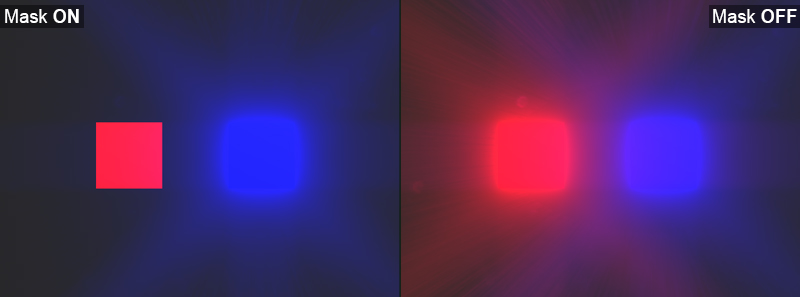
Dynamic masking is now a drop-in setup, no second camera or extra renderer feature is needed. Open the DynamicMask sample scene (Assets\AmplifyBloom\Universal\Samples\DynamicMask) to see it working, then to use it on your own camera:
1. Add the Render Color Mask component to your camera and assign the Volume that holds the Amplify Bloom override.
2. Add the Dynamic Mask Target component to the objects that should be masked. It also affects their children and can be added at runtime.
Where the mask is white bloom goes through, where it is black it is held back. Tick Invert Mask on Render Color Mask to show bloom only on the objects carrying a Dynamic Mask Target (as in the sample scene). Objects hidden behind other geometry are kept out of the mask. Tick Debug to see the mask on screen.
NOTE: The components live in the sample folder, keep it (or its Scripts and Shaders folders) in your project. The sample scene offers to set the project up when opened, press Fix.
NOTE: Render Color Mask only runs in play mode.
Technical Considerations
Mobile Devices
For performance reasons we recommend extensive testing on your target mobile platforms before licensing it. Mid-High end devices recommended, consider using the Natural technique and Low precision.
Bokeh Filtering
Keep in mind that the Bokeh Filtering available in AB is not a replacement for DoF Bokeh effects, it’s a simple and lightweight complement for fast bloom based bokeh shape effects.
Technique
Realistic technique provides a robust method on preventing temporal instability, however it is more GPU intensive.
Natural technique uses a simple bilinear upscale for each of the Mips, making it faster but not as good on preventing temporal stability issues.
Consider using Natural technique on mobile platforms.
Troubleshooting
Nothing renders
The effect is most likely not registered with the pipeline. Make sure the Amplify Bloom renderer feature is added to the Universal Renderer your camera uses. The Volume override and Instance inspectors display a warning when it is missing from every Universal Renderer.
Still nothing renders
The effect is skipped while Intensity and every Lens feature intensity are zero. Tick the override checkbox and raise the value.
Effect shows in the Scene view but not in the Game view (or the opposite)
Check that the Volume (and its layer mask) applies to the camera, and that post-processing is enabled on both the camera and the Scene view.
|